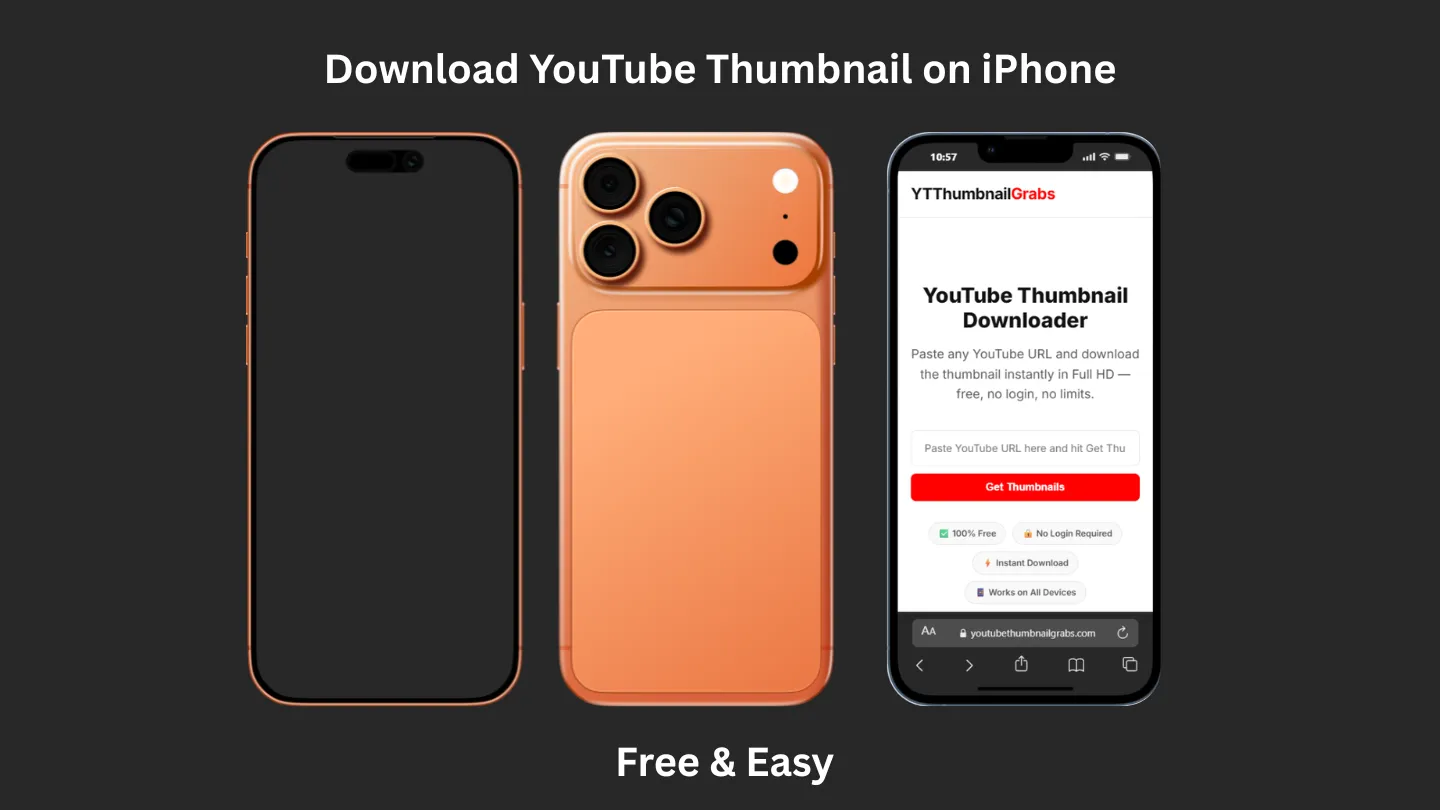
How to Download YouTube Thumbnail on iPhone (2026)
Want to know how to download a YouTube thumbnail on iPhone? You're in the right place. Many iPhone users struggle with this because iOS has stricter download settings than Android. The good news is — it's completely possible, takes less than 30 seconds, and requires no app at all. In this guide, we'll show you exactly how to do it step by step.
Why Download YouTube Thumbnails on iPhone?
There are many reasons why people want to download YouTube thumbnails on their iPhone. Content creators often download thumbnails for inspiration and reference. Designers use them to study color combinations and text placement. Bloggers embed them in articles. Students use them for media research. Whatever your reason, our free tool makes it incredibly easy on any iPhone or iPad.
Method 1 — Using YTThumbnailGrabs (Easiest Way)
This is the fastest and most reliable method to download YouTube thumbnails on iPhone without any app. Follow these steps:
- Open the YouTube app on your iPhone
- Find the video whose thumbnail you want to download
- Tap the Share button below the video
- Tap Copy Link
- Open Safari browser on your iPhone
- Go to youtubethumbnailgrabs.com
- Paste the YouTube URL into the input box
- Tap Get Thumbnails
- Choose your preferred size (Full HD recommended)
- Tap Download Thumbnail
- The image will open — press and hold it → tap Save to Photos
That's it! Your thumbnail is now saved directly to your iPhone Photos app. No account needed, completely free.
Method 2 — Using Safari Direct URL
If you already know the YouTube video ID, you can directly access the thumbnail by typing this URL into Safari:
https://img.youtube.com/vi/VIDEO_ID/maxresdefault.jpg
Replace VIDEO_ID with the actual ID from the YouTube URL. For example, if the URL is youtube.com/watch?v=dQw4w9WgXcQ, the VIDEO_ID is dQw4w9WgXcQ. Then press and hold the image and tap Save to Photos.
How to Save YouTube Thumbnail to iPhone Camera Roll
Once the thumbnail image loads in your browser, saving it to your iPhone camera roll is simple. Press and hold the image for about 2 seconds until a menu appears. Then tap Add to Photos or Save to Photos. The image will immediately appear in your Photos app under Recents.
Does It Work on iPad Too?
Yes, absolutely! The exact same method works on any iPad running iOS 14 or later. The process is identical — open Safari, visit YTThumbnailGrabs, paste your URL, and save the image. The larger iPad screen actually makes it easier to see and select the thumbnail quality you want.
Which Thumbnail Size Should I Download on iPhone?
For most uses on iPhone we recommend downloading the Full HD (1280x720) size. This gives you the highest quality image that looks crisp even on the iPhone's Retina display. If you need a smaller file size, the HD (480x360) version is also excellent quality for most purposes.
Common Problems and Fixes
Problem: Image won't save to Photos
Fix: Go to Settings → Safari → scroll down → make sure Photos access is allowed for Safari.
Problem: Full HD thumbnail not available
Fix: Some older or less popular videos don't have maxresdefault available. Use the HD (hqdefault) version instead — it still looks great.
Problem: Page not loading
Fix: Check your internet connection or try opening the site in Chrome for iPhone instead of Safari.
Conclusion
Pro Tip: Before you publish your video, try our free YouTube Thumbnail Preview tool to see exactly how your thumbnail will look on desktop and mobile.
Now you know exactly how to download YouTube thumbnails on iPhone quickly and for free. No apps, no accounts, no complications. Just visit YTThumbnailGrabs.com, paste your YouTube URL, and save the thumbnail to your camera roll in seconds. Works on all iPhone models and iOS versions.
Related Resources
- ⬇️ Download YouTube Thumbnails Free — Use Our Tool
- 🚀 How to Make YouTube Thumbnail Get More Clicks
- 💡 YouTube Thumbnail Ideas for Beginners 2026
- 🛠️ How to Make YouTube Thumbnail Without Canva
- 🎨 Best YouTube Thumbnail Background Colors
- ⚖️ Is It Legal to Download YouTube Thumbnails?
- 📱 YouTube Shorts Thumbnail Guide 2026