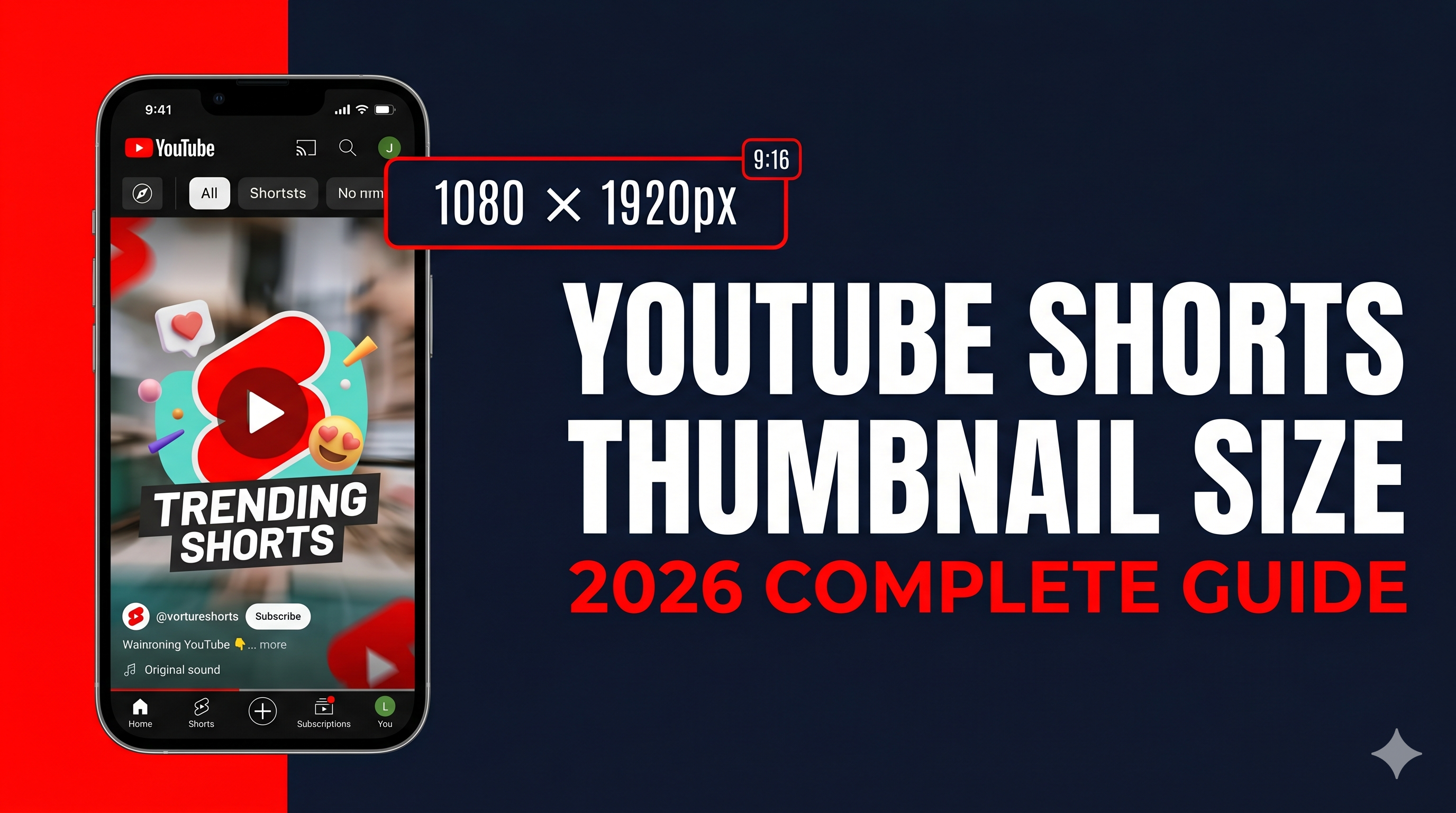
YouTube Shorts Thumbnail Size 2026 — Perfect Dimensions Guide
Getting your YouTube Shorts thumbnail size wrong is one of the most common mistakes creators make in 2026. The wrong size means cropped thumbnails, blurry images, and lost clicks. This guide gives you the exact dimensions, aspect ratio, file size, and step-by-step instructions to set a perfect custom Shorts thumbnail — on both mobile and desktop.
YouTube Shorts Thumbnail Size — Quick Reference
✅ Recommended Shorts Thumbnail Specs 2026
1080×1920 vs 1280×720 — Which Should You Use?
There are two thumbnail sizes that work for YouTube Shorts. Here is the exact difference and when to use each:
| Size | Ratio | Shorts Feed | Regular Feed | Best For |
|---|---|---|---|---|
| 1080×1920px | 9:16 | ✅ Perfect fit | ⚠️ Cropped sides | Recommended |
| 1280×720px | 16:9 | ⚠️ Sides cropped | ✅ Perfect fit | Also works |
Visual — How Each Size Looks in the Shorts Feed
THUMBNAIL
FILLS
PERFECTLY
Left: vertical thumbnail fills the Shorts frame perfectly. Right: horizontal thumbnail shows black bars or cropped sides.
How to Set a Custom YouTube Shorts Thumbnail
YouTube allows custom thumbnails for Shorts on both mobile and desktop. Here are the exact steps for each:
📱 On Mobile (iOS and Android)
Open YouTube App and Go to Your Channel
Open the YouTube app on your phone. Tap your profile picture in the top right corner. Tap Your channel to see all your videos and Shorts.
Find Your Short and Tap the 3 Dots
Scroll to find the Short you want to change the thumbnail for. Tap the 3 dots (⋮) menu next to the Short title. A menu will appear from the bottom of the screen.
Tap Edit Video
From the bottom menu tap Edit video. This opens the video editing screen where you can change title, description, and thumbnail.
Change the Thumbnail
In the editing screen tap Change thumbnail. You will see two options:
- Select image — upload a custom thumbnail from your phone gallery
- Select frame — choose a frame from the video itself
Tap Select image to upload your 1080×1920px custom thumbnail.
Save Your Changes
After selecting your image tap Done or Save in the top right corner. Your custom Shorts thumbnail will be live within 15-30 minutes.
💻 On Desktop (YouTube Studio)
Go to YouTube Studio
Open your browser and go to studio.youtube.com. Make sure you are logged into the correct Google account.
Find Your Short in Content
Click Content in the left sidebar. You will see all your videos and Shorts. Use the filter to show only Shorts if you have many videos. Find the Short you want to update.
Click Edit and Upload Thumbnail
Click the pencil edit icon on your Short. In the edit panel scroll to the Thumbnail section. Click Upload thumbnail and select your 1080×1920px image file. Click Save in the top right.
👁️ Preview Your Shorts Thumbnail Before Uploading
See exactly how your Shorts thumbnail looks in the Shorts feed, mobile search, and sidebar before going live.
Preview My Thumbnail Free →Shorts Thumbnail Design Tips to Get More Views
Getting the right size is step one. Making it clickable is step two. Here are the most important design rules for Shorts thumbnails in 2026:
Design Vertically
Keep all important content — face, text, subject — in the CENTER of the frame. The top and bottom 15% may get cut on some devices.
Show Strong Emotion
Shorts are competitive. A face showing shock, joy, or surprise gets significantly more taps than a neutral expression. Make it dramatic.
Maximum 5 Words of Text
On mobile Shorts thumbnails are tiny. Keep text bold, large, and under 5 words. If viewers need to squint to read it — simplify it.
Avoid White Backgrounds
The Shorts feed has a dark background. White thumbnails blend in and get ignored. Use bright contrasting colors — red, yellow, orange stand out best.
Create Curiosity or Urgency
The best Shorts thumbnails make viewers feel they MUST tap to find out what happens. Use text like "Wait for it..." or show a shocking moment mid-action.
Stay Consistent With Your Brand
Use the same colors, fonts, and style across all your Shorts. Viewers who recognize your thumbnail style will tap without reading the title.
Common YouTube Shorts Thumbnail Mistakes to Avoid
- Using 1280×720 horizontal thumbnail: It gets cropped in the Shorts feed and looks unprofessional. Always use 1080×1920 vertical.
- Uploading file over 2MB: YouTube compresses it and the thumbnail looks blurry. Keep under 2MB by using JPG at 90% quality.
- Putting important text at the very edges: The Shorts player UI overlays elements on the edges of thumbnails. Keep all text and faces centered.
- Using a screenshot from the video: Auto-selected frames from your Short are rarely the best thumbnail. Always upload a custom designed image.
- Using the same thumbnail as the video: Shorts and regular videos appear in different feeds. Design a separate thumbnail optimized for each format.
- Not previewing before upload: Always check how your thumbnail looks before going live using a preview tool.
How to Create a 1080×1920 Shorts Thumbnail in Canva
Canva is the easiest free tool to create correctly sized Shorts thumbnails. Here is the exact process:
- Go to canva.com and click Create a design
- Click Custom size and enter 1080 × 1920 pixels
- Click Create new design
- Design your thumbnail — add background, face photo, bold text
- Keep all important content in the center 70% of the frame
- Click Share → Download → JPG
- Set quality slider to maximum
- Click Download
- Check file is under 2MB before uploading
⬇️ Download Any YouTube Shorts Thumbnail Free
Want to study what top Shorts creators use for their thumbnails? Download any YouTube thumbnail in Full HD instantly — no login needed.
Download Thumbnails Free →Frequently Asked Questions
📖 Related Guides
- 🎬 Can You Upload Custom Thumbnail for YouTube Shorts? Full Guide
- ⬇️ Download Any YouTube Thumbnail in HD — Free Tool
- 👁️ Preview Your Thumbnail Before Uploading — Free Tool
- 🔍 Why is My YouTube Thumbnail Blurry? Fix Guide
- 🔧 How to Fix Blurry YouTube Thumbnail — 5 Steps
- 🚀 How to Make YouTube Thumbnail Get More Clicks
- 🎨 Best YouTube Thumbnail Background Colors 2026