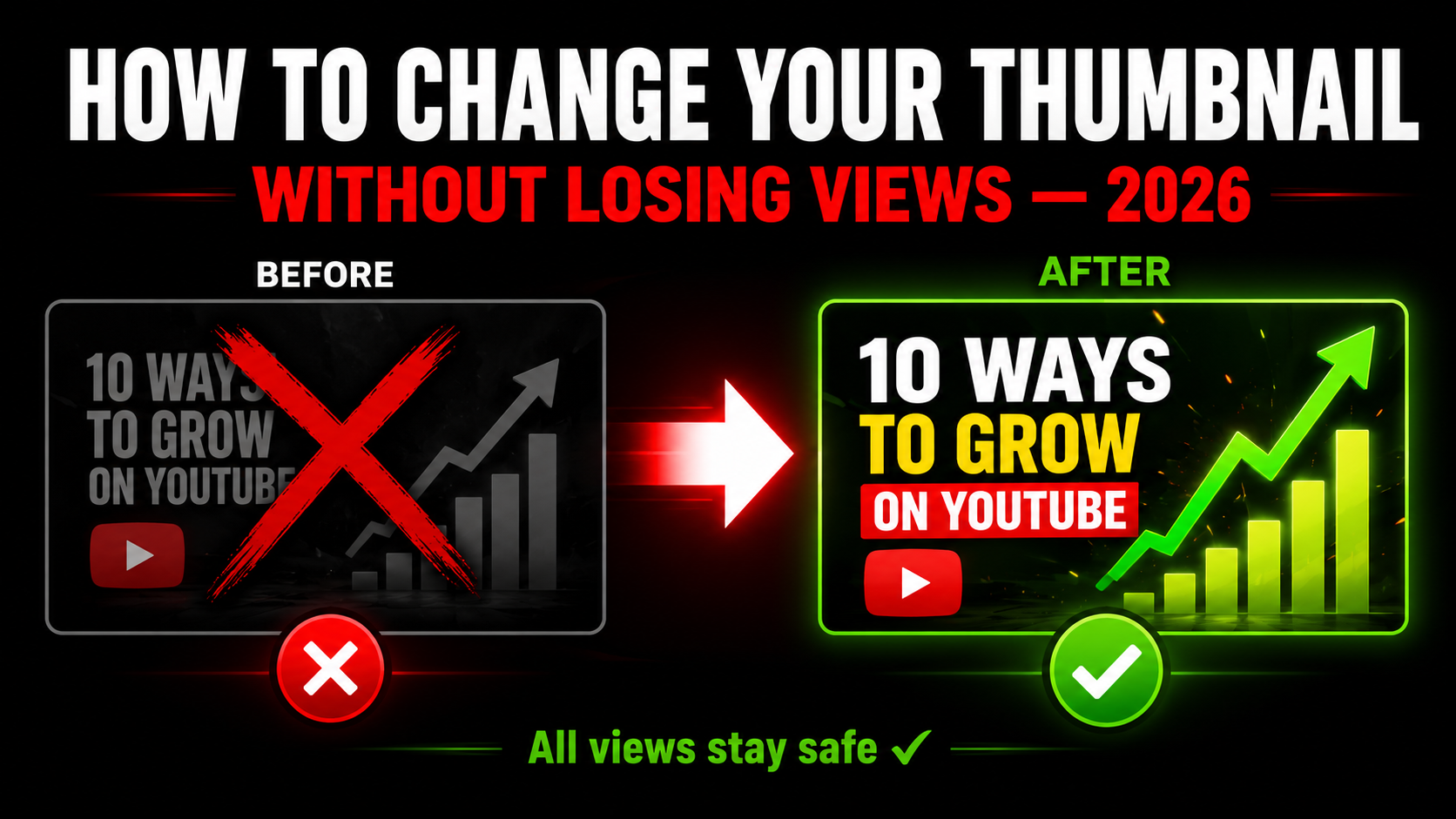
How to Change YouTube Thumbnail After Upload (2026) — Without Losing Views
You uploaded your video but the thumbnail does not look right. Maybe it came out blurry, maybe you found a better design, or maybe your CTR is too low and you want to test something new. The good news is you can change your YouTube thumbnail at any time after uploading — and your views, likes, comments, and all watch time stay completely safe. This guide shows you exactly how, step by step, on both mobile and desktop.
Yes — You Can Change Your Thumbnail Without Re-Uploading
Your video, all its views, likes, comments, and watch time stay 100% intact. Only the thumbnail image changes. The new thumbnail goes live within 15-30 minutes.
How to Change YouTube Thumbnail — Mobile and Desktop
- 1Open the YouTube app and tap your profile picture in the top right
- 2Tap Your channel to see all your videos
- 3Find your video and tap the 3 dots (⋮) next to it
- 4Tap Edit video from the menu
- 5Tap the pencil icon on the current thumbnail
- 6Tap Select image and choose your new file
- 7Tap Save in the top right corner
- 1Go to studio.youtube.com in your browser
- 2Click Content in the left sidebar
- 3Find your video and click the pencil edit icon
- 4Scroll down to the Thumbnail section
- 5Click the X on the old thumbnail to remove it
- 6Click Upload thumbnail and select your new file
- 7Click Save in the top right corner
👁️ Preview Your New Thumbnail Before Uploading
See exactly how your replacement thumbnail looks in mobile search, desktop, sidebar, and Shorts before going live.
Preview Free →Desktop — Full Step by Step With Details
Open YouTube Studio
Go to studio.youtube.com on your desktop browser. Make sure you are signed into the correct Google account — the one that owns the channel with the video you want to update.
Go to Content
In the left sidebar click Content. You will see a list of all your uploaded videos. If you have many videos use the search bar at the top to find the one you want, or sort by newest/oldest.
Click the Pencil Edit Icon
Hover over your video's thumbnail row and click the pencil icon (✏️) that appears. This opens the video details editing screen. Do not click anything else — only the pencil.
Find the Thumbnail Section
Scroll down in the editing panel on the right side until you see the Thumbnail section. You will see your current thumbnail displayed along with 3 auto-generated options from the video.
Remove the Old Thumbnail First
Click the small X button on your current custom thumbnail to remove it. This is important — removing first rather than just overwriting helps YouTube fully clear the old cached version faster.
Upload Your New Thumbnail
Click Upload thumbnail. Select your new image file from your computer. Make sure it is 1280×720px, JPG format, and under 2MB before selecting. Wait for the upload progress bar to reach 100%.
Click Save
Click the Save button in the top right corner of the video editing panel. You should see a brief confirmation. Your new thumbnail is now live and will appear across YouTube within 15-30 minutes.
After Changing Your Thumbnail — What to Do
Clear Your Browser Cache
YouTube may still show your old thumbnail to you because of browser caching. After uploading, press Ctrl+Shift+R on Windows or Cmd+Shift+R on Mac to hard refresh the page. On mobile, open the video in a different browser or clear your YouTube app cache to see the new version immediately.
Wait 15-30 Minutes
YouTube needs time to process your new thumbnail and distribute it across its global server network. In most cases the update appears within 15-30 minutes. If after 2 hours your new thumbnail still has not appeared, check that you actually saved correctly by going back to YouTube Studio and confirming the new image shows there.
Track CTR After the Change
Wait 48-72 hours after changing your thumbnail, then check your CTR in YouTube Studio → Analytics → Reach tab. Compare the CTR before and after the change. If CTR improved, the new thumbnail is working better. If it did not improve, try a different approach with Trick 1-9 from our clicks guide.
When Should You Change Your Thumbnail?
Changing a thumbnail is worth doing in any of these situations:
- CTR is below 3% for a video getting more than 300 impressions per month — the thumbnail is failing to convert viewers who see it
- The thumbnail looks blurry or pixelated after upload due to wrong export settings — replace with a correctly sized version
- You designed a better version and want to test if it performs higher
- The video title changed and the thumbnail no longer matches the new title
- The thumbnail used auto-generated frame from the video and you want to replace it with a custom design
- The video is old but still getting impressions — a refreshed thumbnail can revive traffic to older content
Why You Might Not Be Able to Change Your Thumbnail
If the upload thumbnail button is greyed out or missing, one of these reasons is likely the cause:
Channel Not Phone Verified
Custom thumbnails require your YouTube channel to be phone-verified. Go to youtube.com/verify and complete phone verification. Once verified you can immediately upload custom thumbnails on all your videos.
Active Community Guidelines Strike
A channel with an active strike may have custom thumbnail upload restricted as part of the penalty. The restriction lifts when the strike expires (usually after 90 days) or if the strike appeal is successful.
Wrong Account
Make sure you are signed into the Google account that owns the channel. If you manage multiple channels or YouTube Brand Accounts, double check the account selector in the top right of YouTube Studio shows the correct channel.
Best Practices for Your New Thumbnail
Before uploading a replacement thumbnail, make sure it meets these requirements to avoid the same quality issues that may have prompted the change:
- Canvas size exactly 1280×720 pixels
- Format: JPG at 90% quality (or PNG for text-heavy designs)
- File size: under 2MB
- Text readable at 10% zoom (mobile size)
- Bold contrasting colors — not white background
- Previewed in all 4 YouTube placements before uploading
⬇️ Study What Better Thumbnails Look Like
Download thumbnails from your best-performing competitors in Full HD. Free tool — no login, no limits, instant download.
Frequently Asked Questions
📖 Related Guides
- 👁️ Preview Your New Thumbnail Before Uploading — Free Tool
- ⬇️ Download Any YouTube Thumbnail in HD — Free Tool
- 🔍 Why is My YouTube Thumbnail Blurry? Fix Guide
- 🔧 How to Fix Blurry YouTube Thumbnail — 5 Steps
- 🎯 How to Get More Clicks on YouTube Thumbnails — 9 Tricks
- ⚠️ YouTube Thumbnail Quality Bad? Fix Guide 2026
- 📐 YouTube Thumbnail Size 2026 — Complete Guide